Sharing PowerPoint presentations between Mac and Windows computers often results in frustrating formatting inconsistencies, missing fonts, broken media embeds, shifted slide layouts, and altered color rendering. These cross-platform compatibility issues occur because macOS and Windows use different default system fonts, different rendering engines for text and graphics, and different media codec libraries. This comprehensive guide covers every method to convert, export, and optimize PowerPoint files for seamless Mac-to-PC compatibility in 2026, ensuring your presentations look identical regardless of which operating system opens them.
PPT Cross-Platform Key Issues
Table of Contents
Method 1: Save in .pptx Format (Universal Compatibility)
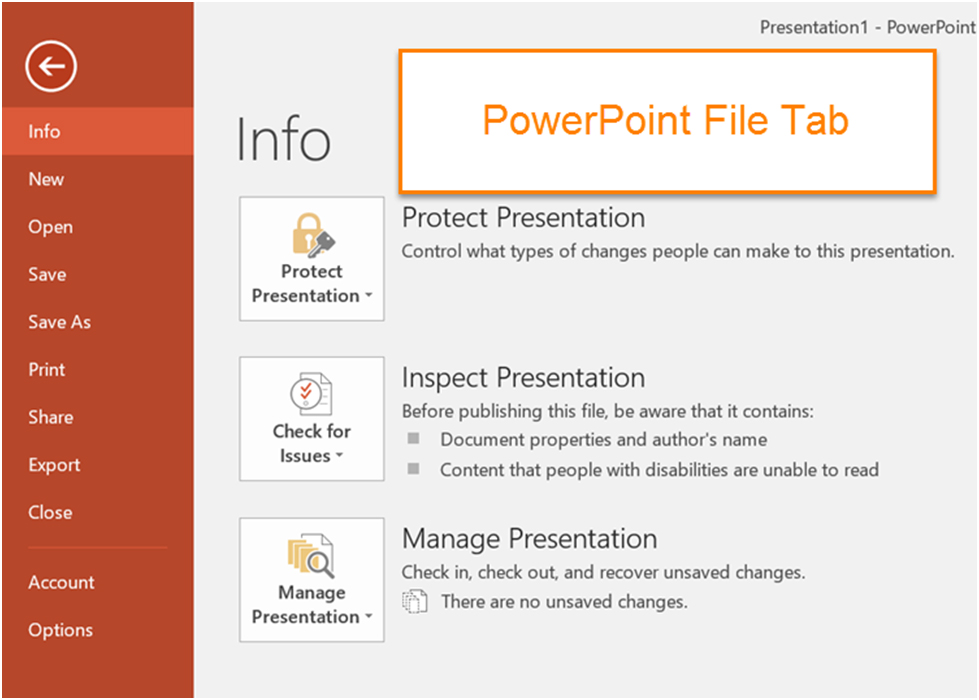
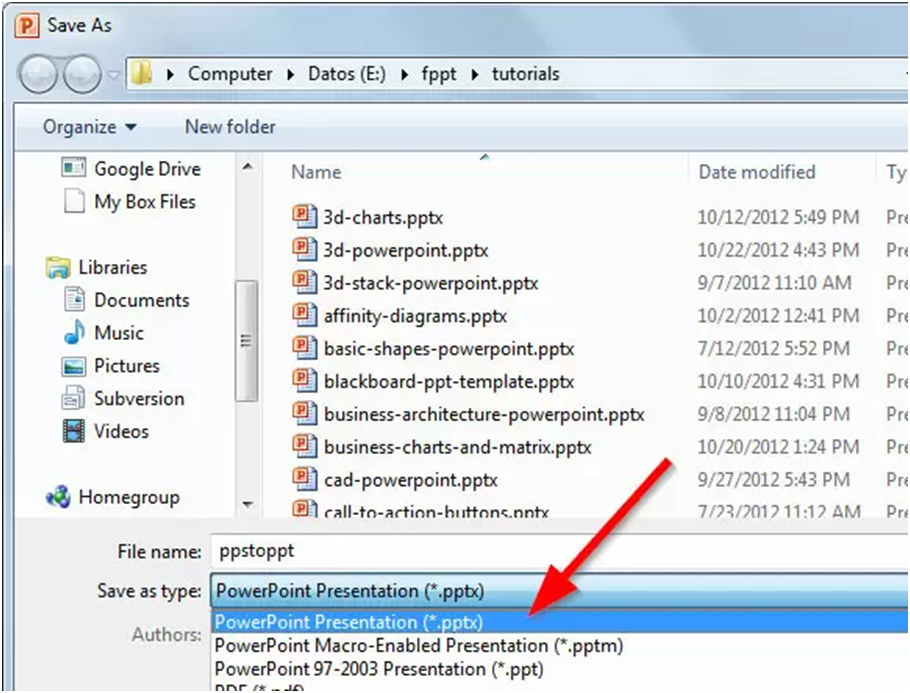
The most important step for Mac-to-PC PowerPoint compatibility is ensuring your presentation is saved in the modern .pptx format rather than the older .ppt format or the Mac-specific Keynote .key format. In Microsoft PowerPoint for Mac, go to File then Save As, choose PowerPoint Presentation (.pptx) from the format dropdown, and save. The .pptx format is the XML-based standard that both Mac and Windows versions of PowerPoint fully support, providing the best cross-platform fidelity. If you created your presentation in Keynote, you must export it: open in Keynote, go to File then Export To then PowerPoint, and save as .pptx.
Method 2: Handle Font Compatibility
Font substitution is the number one cause of presentation formatting disasters when moving between Mac and PC. macOS includes fonts like Helvetica Neue, San Francisco, Avenir, and Futura that are not installed on Windows by default. When Windows encounters a missing font, it substitutes a similar but not identical font, causing text to reflow, slide layouts to shift, and carefully designed typography to break. The safest approach is to use only cross-platform fonts that exist on both operating systems: Arial, Calibri, Times New Roman, Verdana, Georgia, Tahoma, Trebuchet MS, and Courier New are safe choices available on both Mac and Windows.
If you must use Mac-specific fonts, embed them in the PowerPoint file. Unfortunately, PowerPoint for Mac does not support font embedding directly (this feature is only available in PowerPoint for Windows). The workaround is to convert text-heavy slides to images or to install the same custom fonts on the target Windows machine before opening the presentation. Alternatively, use Google Fonts (free, cross-platform) for decorative typography since Google Fonts can be downloaded and installed on both macOS and Windows.
Method 3: Export as PDF for Guaranteed Formatting
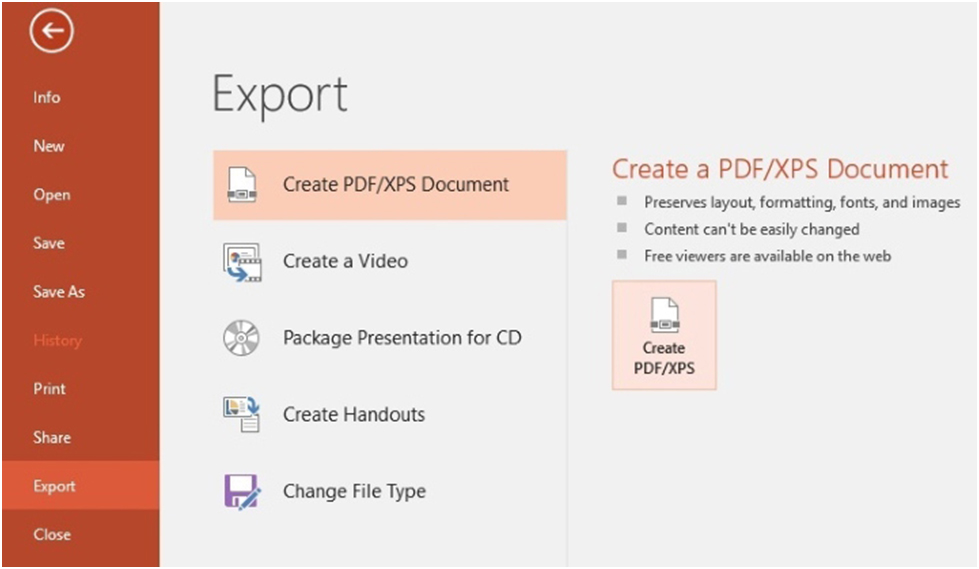
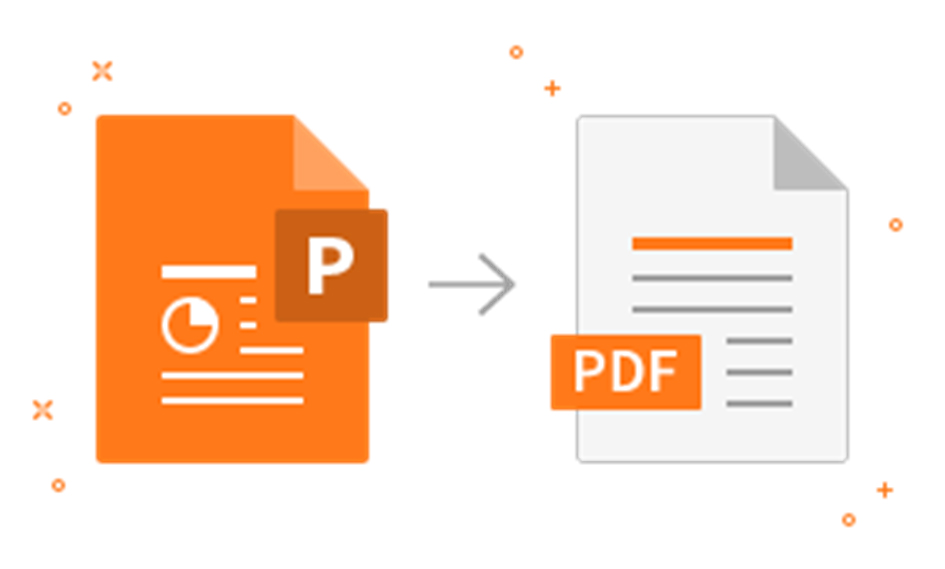
When you need absolute formatting guarantee with zero risk of layout shifts, exporting your presentation as a PDF file eliminates all font, media, and rendering compatibility concerns. In PowerPoint for Mac, go to File then Export then PDF. In Keynote, go to File then Export To then PDF. The PDF output embeds all fonts, rasterizes complex graphics, and produces a universally viewable file that looks identical on every computer, tablet, and smartphone regardless of operating system. The trade-off is that PDF presentations cannot be edited by the recipient and do not support animations, transitions, or embedded videos.
Method 4: Use Online and Third-Party Conversion Tools
Several online and desktop conversion tools can optimize PowerPoint files for cross-platform compatibility. CloudConvert, Zamzar, and iLovePPT provide browser-based conversion that processes your .key or .pptx files through cloud servers and outputs a Windows-optimized version. Google Slides offers another approach: upload your PowerPoint to Google Drive, open it in Google Slides (which normalizes fonts and formatting for web rendering), make any necessary adjustments, then download as .pptx for a Windows-compatible version that has been re-processed through a platform-neutral rendering engine.

Related Guides
Use Mac keyboard with Windows, crop screenshots on Mac, rip DVD on Mac, find Mac settings.
Present with Confidence Across Platforms
Use .pptx format, cross-platform fonts, and test on Windows before your presentation day.